A slow WordPress site is usually fixable. Most UK business sites that feel sluggish are carrying too many plugins, oversized images, weak hosting or a theme that does more work than it needs to. You do not need a full rebuild to get things moving again. Start with the biggest bottlenecks, measure after each change, and keep going until the pages feel snappy on a phone as well as on a desktop.
That is the short answer. The longer one is that speed problems stack up quietly over time. A site that launched fine can become a slow WordPress site after two years of plugins, page builders, marketing pixels and unoptimised media. This guide covers what usually causes it, eight fixes that actually help, how to check progress, and when it is worth bringing in a developer.
I build and look after WordPress sites with Divi, ACF, Gravity Forms and WooCommerce from Clapham, London, and I do white-label overflow for agencies. The advice below is practical, not a sales pitch. If you are still choosing a platform, my guide to WordPress vs Shopify is a useful starting point.

What usually makes a slow WordPress site
Before you install another speed plugin, it helps to know what you are fighting. On a typical small business WordPress site, the main culprits are the same few things, and they often arrive together.
Too many plugins. Each active plugin loads PHP and often JavaScript or CSS on every page. Ten carefully chosen plugins can be fine. Thirty overlapping ones rarely are. Marketing, popup, slider and “all-in-one” plugins are common offenders on a slow WordPress site.
Heavy images and video embeds. A hero image exported at 4000px wide, or a gallery of unoptimised JPEGs, can add megabytes to a page. Mobile visitors feel that first, especially on 4G.
Hosting that is too cheap for the job. Shared hosting with noisy neighbours, no object cache and slow PHP can make even a tidy site feel slow. WordPress itself is not the problem here. The server is.
Theme and page builder bloat. Divi, Elementor and similar builders are fine when used carefully. They become a problem when every section loads extra widgets, animations and unused CSS. A custom theme or a leaner Divi setup usually loads less.
No proper caching. Without page caching, WordPress rebuilds each page on every visit. That is expensive for busy sites and noticeable even on quiet ones.
Third-party scripts. Cookie banners, chat widgets, analytics, ads and font loaders all compete for attention on first load. A few are normal. A pile of them turns a usable site into a slow WordPress site.
Google’s tools are a fair place to start measuring. PageSpeed Insights and the Core Web Vitals guidance on the WordPress.org performance docs give you a baseline. Treat the scores as clues, not a league table. What matters is how the site feels for a real visitor on a normal phone connection.
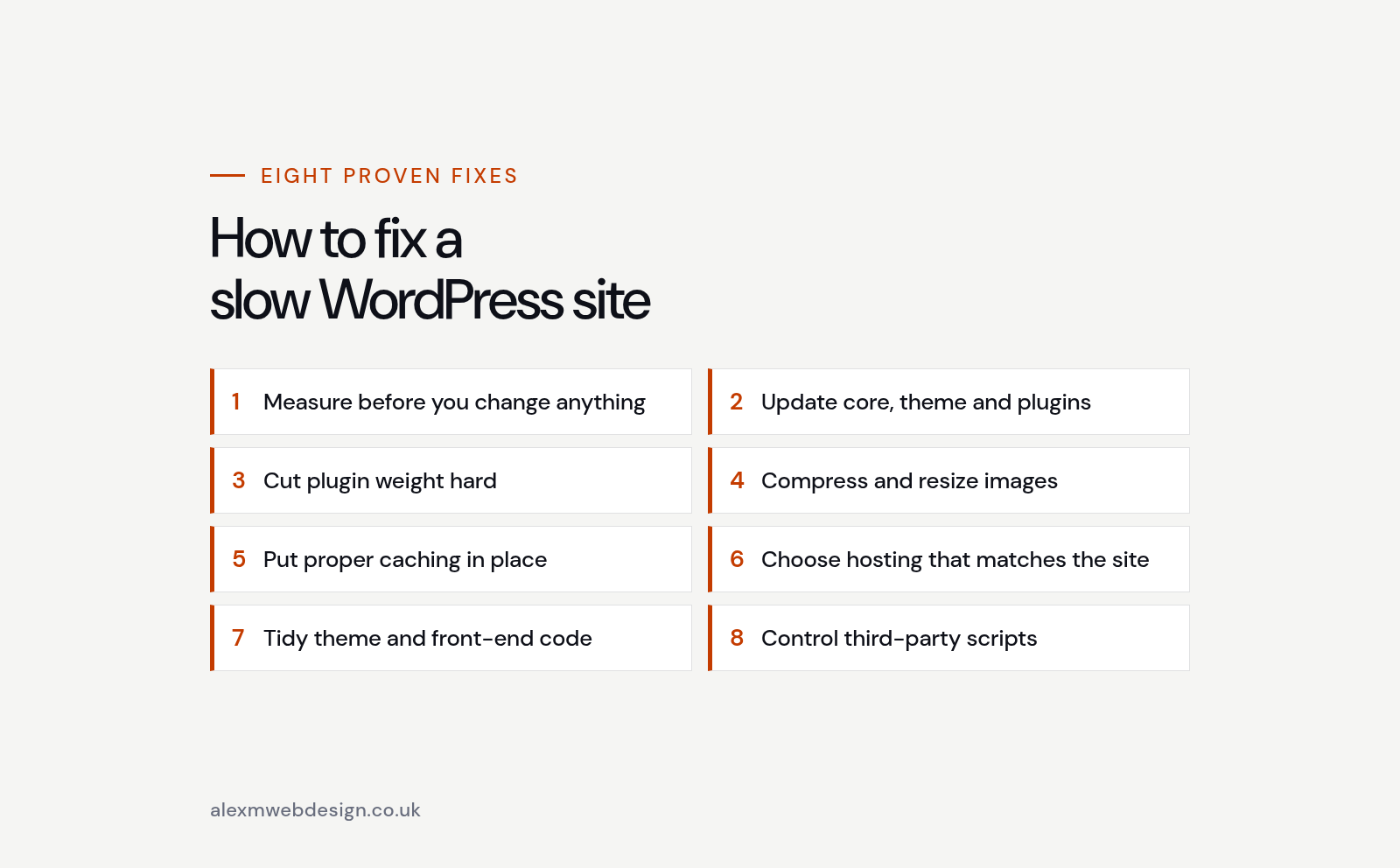
Slow WordPress site: 8 proven fixes that actually help
Work through these in order. Each one can make a real difference on its own. Together they usually turn a slow WordPress site into something that feels responsive again. Skip ahead only if you already know one area is fine.
1. Measure before you change anything
Open the site in an incognito window on your phone, and also run PageSpeed Insights on the home page and one busy inner page. Note Largest Contentful Paint, Total Blocking Time and what the report flags as the biggest opportunities. Without a before and after, you are guessing.
If you have Google Search Console linked, check the Core Web Vitals report as well. It shows how real visitors experience the site over time, which is more useful than a single lab test. Screenshot the numbers so you can compare after each fix.
2. Update WordPress, the theme and plugins
Out of date software is a security risk and sometimes a speed problem. Update core, the theme and plugins on a staging copy first if you can, then on live. Remove anything you no longer use. Deactivate, then delete. Leaving unused plugins installed still adds risk even when they are off.
This alone will not fix every slow WordPress site, but it clears the ground for the work that follows and often removes notices and compatibility quirks that waste time later.
3. Cut plugin weight hard
List every active plugin and ask what job it does. If two plugins do the same job, keep one. If a plugin only powers one rarely used feature, consider replacing that feature with a lighter approach or removing it.
Be especially careful with page builders you no longer need alongside your main theme, slider and animation packs, social proof and popup tools that load on every page, security suites that scan on the front end as well as in the admin, and old SEO plugins left behind after a switch to Rank Math or Yoast.
Gravity Forms, ACF and WooCommerce are usually worth keeping when you need them. The clutter around them is what slows things down. On agency sites I often find three form plugins and two SEO plugins still active from past freelancers. One of each is enough.
4. Compress and resize images properly
Serve images at the size they display. A full-width banner does not need to be 4000px wide if the layout tops out at 1920px. Convert to WebP where your theme and hosting support it, and lazy-load below-the-fold images so the first screen can load first.
If your media library is full of huge originals, a one-off clean-up makes a bigger difference than another caching tweak. For new uploads, set a sensible max width in your workflow so the problem does not come back. Featured images and blog graphics should be rendered at the size you need, not upscaled from a small file or crushed until they look soft.
5. Put proper caching in place
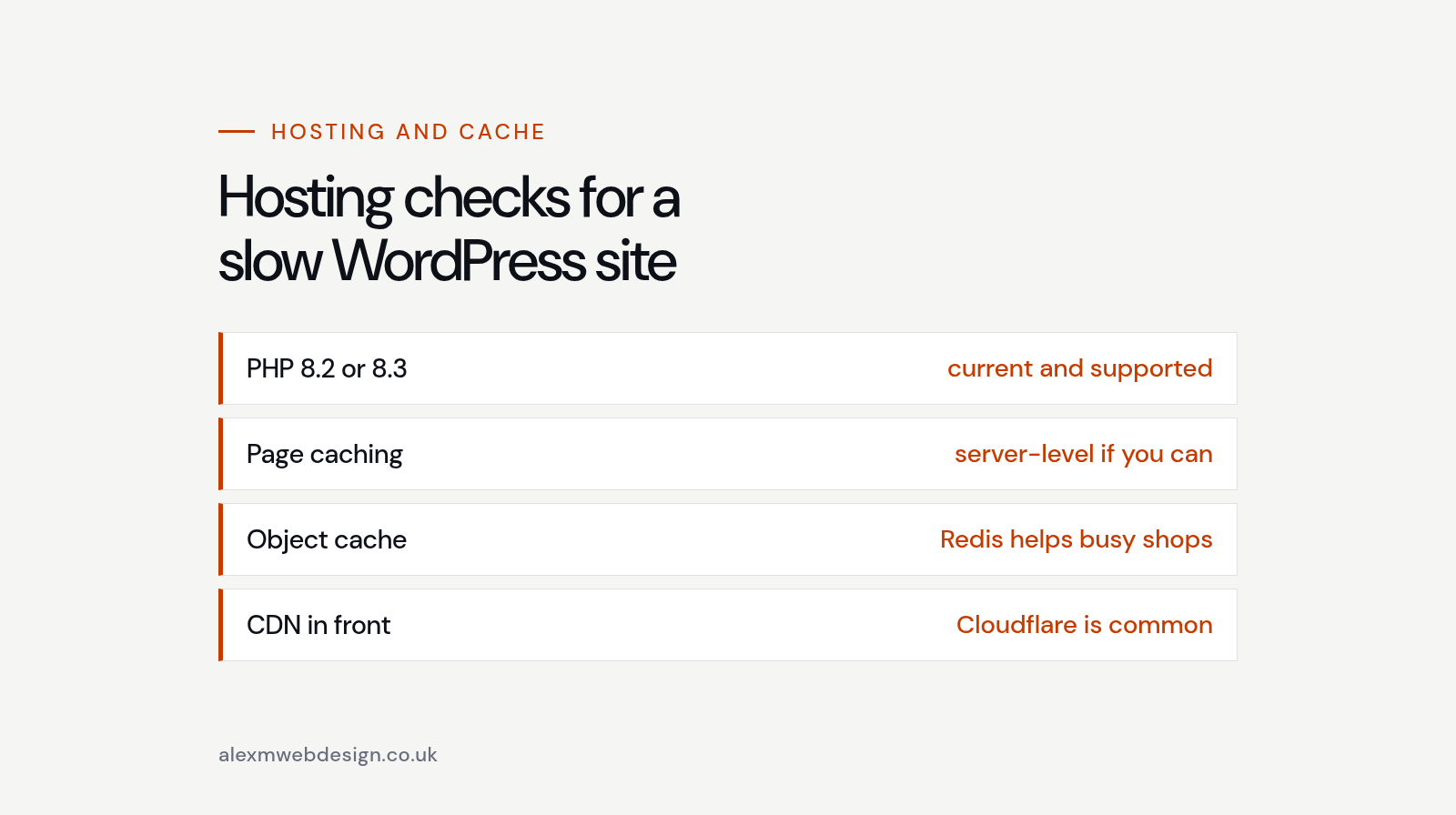
Page caching stores a ready-made HTML version of each page so WordPress does not rebuild it on every visit. Most good hosts offer server-level caching. If yours does not, a well-configured caching plugin helps, but one carefully set up is better than three fighting each other.
Object caching (Redis or Memcached) helps busy or WooCommerce sites. Browser caching and a CDN take the pressure off your origin server for static files. Cloudflare in front of a decent UK or EU host is a common, sensible setup for small businesses.
Avoid stacking multiple caching plugins. That is a classic way to make a slow WordPress site worse while you are trying to fix it. Also exclude carts, checkouts and account pages from full page cache when you run WooCommerce, or you will create more problems than you solve.
6. Choose hosting that matches the site
If the server is slow, everything else is a bandage. Look for current PHP (8.2 or 8.3), enough memory, SSD storage and caching built in. Managed WordPress hosts cost more than the cheapest shared plans, and for a business site that usually pays for itself in fewer headaches.
WooCommerce needs more resources than a simple brochure site. If you sell online on WordPress, budget for hosting that can handle carts, checkouts and logged-in users without falling over at busy times. A migration to better hosting is often cheaper than weeks of micro-optimisation on a weak server.
7. Tidy the theme and front-end code
On Divi sites, turn off unused modules where the theme allows it, keep animations light and avoid nesting huge rows of modules for simple layouts. On custom themes, dequeue scripts that only belong on one template so they do not load site-wide.
Minify CSS and JavaScript only after caching and images are sorted. Minification helps at the margins. It will not rescue a theme that loads 40 scripts on every page.
Fonts matter too. Self-host a small set of weights, or stick to a system stack, rather than pulling half a family from a third-party CDN on every visit. Icon fonts that load a whole set for three icons are another quiet tax on a slow WordPress site.
8. Control third-party scripts
Every chat widget, heatmap, ad tag and marketing pixel adds work on first load. Load only what you use. Delay non-essential scripts until after the main content is interactive where that is safe to do. Put cookie consent in place properly so you are not loading trackers before consent on UK and EU visitors.
If the marketing team needs several tools, agree which ones stay on the home page and which can load only on thank-you or blog pages. A slow WordPress site is often a slow marketing stack wearing a WordPress badge.

How long should a WordPress page take to feel fast?
There is no single magic number, but as a rule of thumb a brochure page should feel usable within a couple of seconds on a decent mobile connection. Product and checkout pages on WooCommerce will be heavier. Aim for a strong Largest Contentful Paint on key templates, and watch real-user data in Search Console rather than obsessing over a 100/100 lab score.
Nobody can honestly promise rankings from a speed project alone. Faster pages help visitors and remove one technical obstacle. Content, relevance and links still do the heavy lifting for search. Be wary of anyone who bundles “we will get you to page one” into a caching quote.
What a slow WordPress site fix usually costs
A focused speed pass is often half a day to a couple of days, depending on how tangled the site is. My build rate is £350 a day. Smaller support and investigation work is £45 an hour. A light tidy-up on a well-built site might be a few hours. A Divi site with years of plugins, a bloated media library and weak hosting can take longer, especially if staging and careful testing are needed.
I also offer an SEO Health Check as a half day for £250 or a full day for £400. That is a technical look at the site, written in plain English, with the work scoped honestly. It is not a ranking guarantee. If the main problem is speed, we can treat that as its own job.
For a wider sense of what WordPress projects cost in the UK, see my guide to WordPress website cost. Shopify shops have a different cost shape; that is covered in Shopify website cost.
When to fix it yourself, and when to get help
If you are comfortable with updates, a caching plugin and image compression, start there. Many slow WordPress site problems are fixed with housekeeping and better hosting.
Get a developer involved when the site is WooCommerce and checkout feels sluggish, when you are on Divi or another builder and unused CSS is huge, when plugins conflict when you try to remove them, when you need staging, redirects and a careful go-live, or when an agency needs white-label overflow and a clear written report for the client.
I work freelance days on Monday, Tuesday and Thursday from London, including remote work across the UK. If you want a straight assessment rather than a rebuild pitch, use the contact page or look at recent WordPress and Shopify work first.
A simple order of attack
When a client sends me a slow WordPress site, this is roughly the order I use.
First, measure and take a backup. Second, update and remove dead plugins. Third, fix images and enable sensible caching. Fourth, check hosting and PHP version. Fifth, trim theme and third-party scripts. Sixth, re-measure on mobile and compare. Only then do deeper code or template work if the site still feels heavy.
That sequence stops you paying for custom development before the cheap wins are done. It also makes it obvious whether the remaining problem is the theme, WooCommerce complexity or something on the server. Agencies often want that written up for the client; a short report with before and after timings is usually enough.
Keeping a fixed site fast
Once the site is quick again, protect the work. Add plugins only when you need them. Compress images before upload. Review marketing scripts every quarter. Keep WordPress and plugins updated on a schedule. If someone else will edit the site, give them a short note on what not to install.
A slow WordPress site often returns the same way it arrived: one small addition at a time. A light monthly care arrangement, or a quarterly check, is cheaper than another emergency tidy-up six months later.
Slow WordPress site FAQs
Why is my WordPress site so slow?
Usually a slow WordPress site is carrying a mix of too many plugins, oversized images, weak hosting, a heavy theme or page builder, no proper caching and too many third-party scripts. They tend to build up together over time. Measure first so you can see which one is hurting your slow WordPress site the most.
Will a caching plugin fix a slow WordPress site?
Caching helps a slow WordPress site, but it rarely fixes everything on its own. It stops WordPress rebuilding each page on every visit, but it can’t make up for bloated plugins, huge images or a weak server. Use one well-configured caching plugin, or your host’s server-level caching, rather than stacking several.
Does hosting affect WordPress speed?
Yes, a lot. If the server is slow, everything else is a bandage. Look for current PHP, enough memory, SSD storage and caching built in, and budget for more resources if you run WooCommerce. Moving a slow WordPress site to better hosting is often cheaper than weeks of tweaking on a weak server.
How much does it cost to speed up WordPress?
A focused speed pass usually takes from half a day to a couple of days, depending on how tangled the site is. I charge £350 a day, or £45 an hour for smaller support and investigation work. A light tidy-up on a well-built slow WordPress site might only take a few hours.
Final thoughts
A slow WordPress site is rarely a mystery. It is usually plugins, media, hosting, caching and third-party scripts piled on top of each other. Fix those in a sensible order, measure as you go, and keep the stack lean afterwards so the problem does not creep back.
If you would rather hand the investigation to someone who already works in Divi, ACF, Gravity Forms and WooCommerce every week, get in touch with a link to the site and what feels slow. I will tell you honestly whether it is a short fix, a hosting move or a bigger piece of work, and what that looks like in days or hours at current rates.